 EEEN11202 course notes
3.1.2.2. Using VSCode online with codespaces
Key points
You need to access the pre-made files for this course in GitHub.
You need to start the codespace in GitHub.
Once the codespace has started you need to open the workspace file.
You need to stop the codespace when you’re not using it, otherwise you may run out of free hours.
You also need to keep an eye on disc space, otherwise you may run out of free allowance.
The codespace runs Linux. You should follow the Linux instructions in the labs, even if your main operating system is Windows or macOS.
3.1.2.2.1. Setting up the tools and files
You only need to follow these steps once.
We have made a range of files that help define the settings used in the course. These are stored in GitHub Classroom. The GitHub Classroom link is on Canvas in the Week 2 module. Click on this link.
Sign in to GitHub. If you don’t already have an account, or an account using your University of Manchester email address, create one using the link that gets displayed. Follow the instructions on the website.
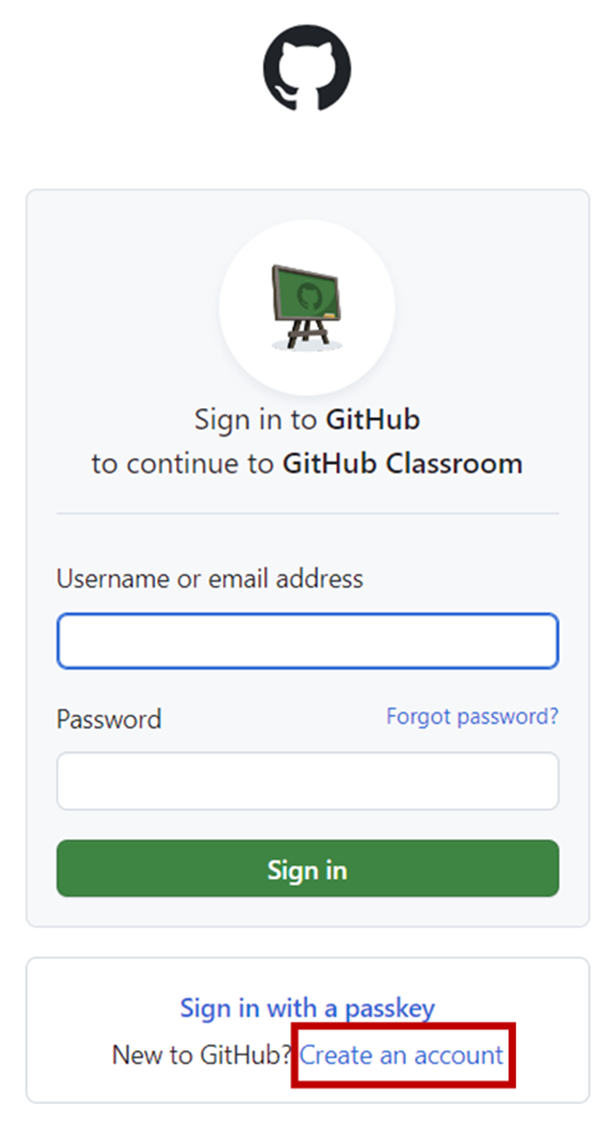
Screenshot of GitHub, software from Microsoft. See course copyright statement.
You can use any username that you would like, it doesn’t need to be your University one (and it is probably better if it isn’t, so you can keep your University username known only to you).
You must enter your University of Manchester provided email address. This is needed for everything to work correctly for the assignments.
After entering your details, GitHub will ask you to “Authorize GitHub Classroom”. Do this.
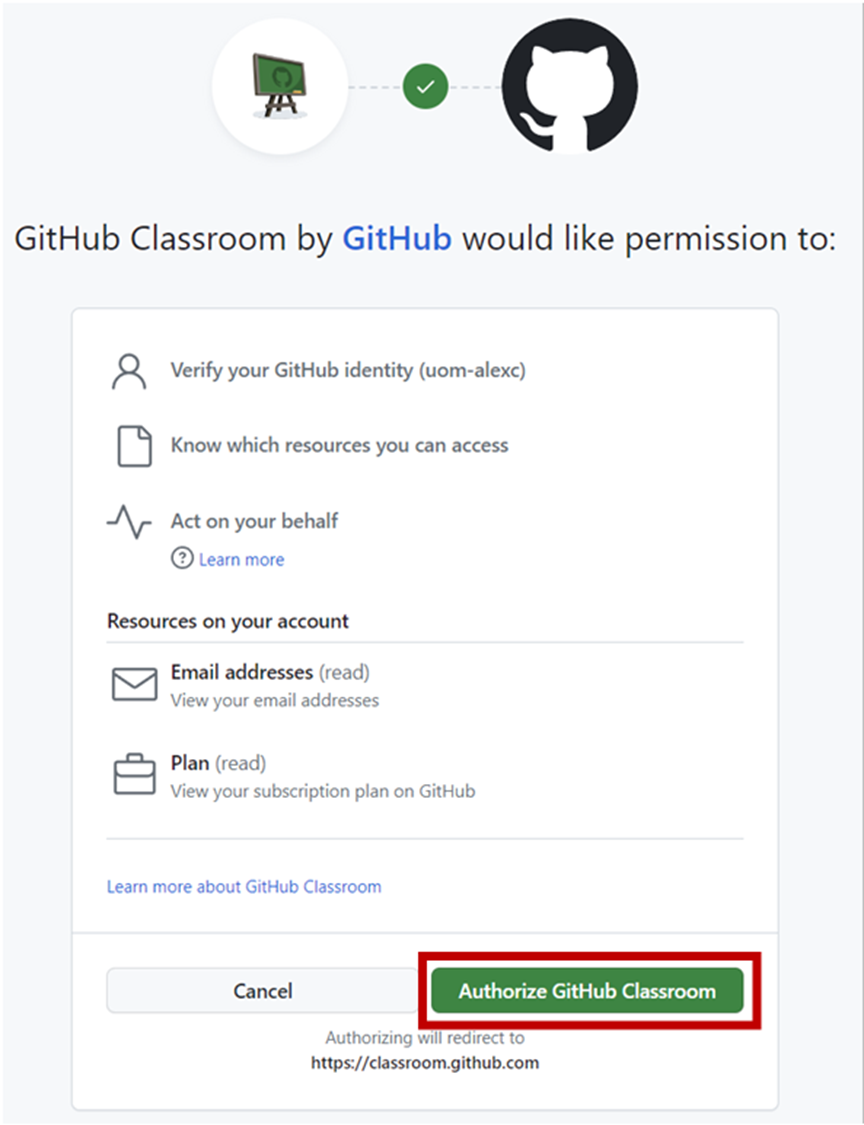
Screenshot of GitHub, software from Microsoft. See course copyright statement.
It can take a minute or two for everything to set up. You may be shown a waiting page. Wait a minute and then refresh the page in your browser.
Bug
Some people are presented with a
Repository Access Issuepage due to a bug in GitHub classroom.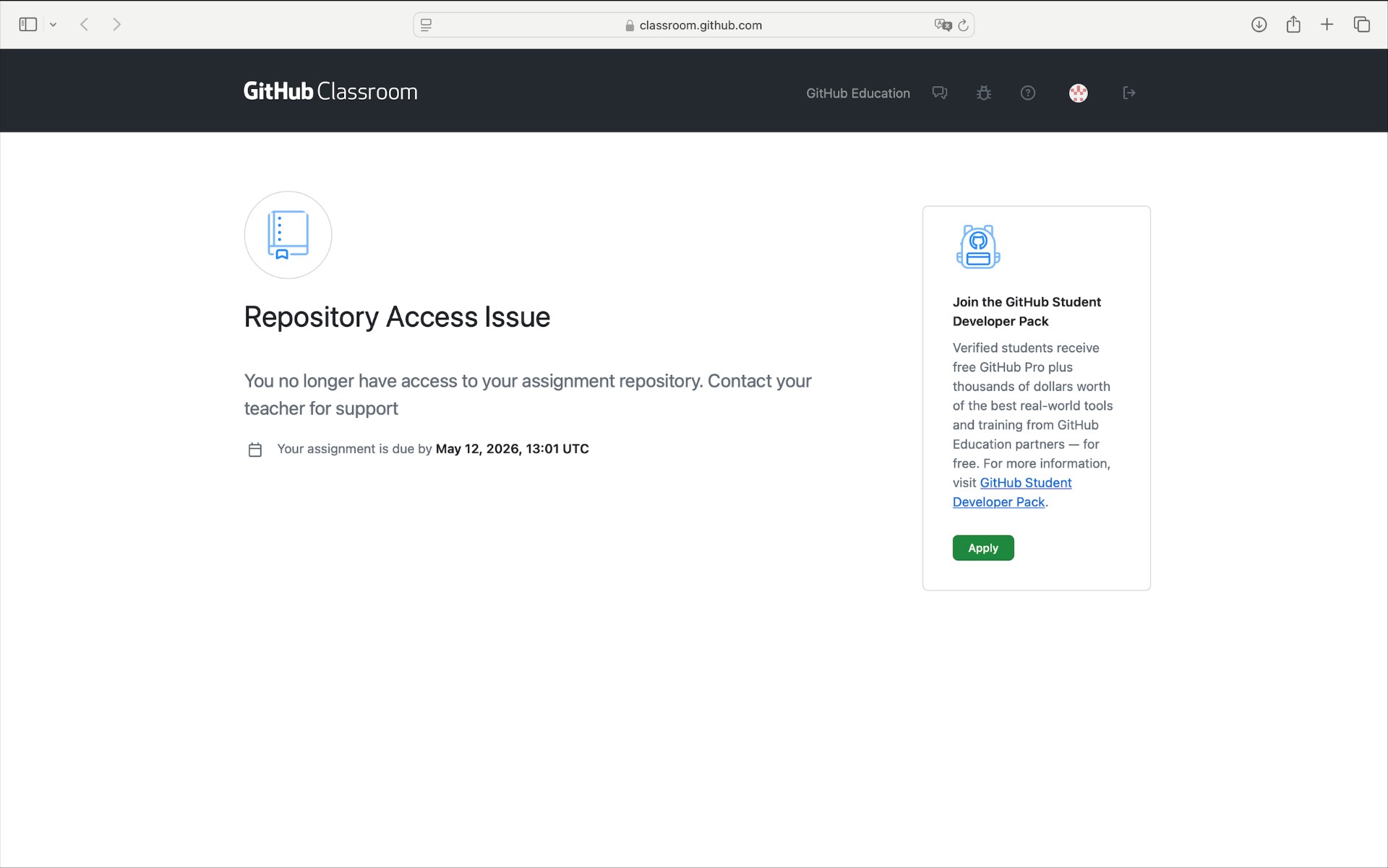
Screenshot of GitHub, software from Microsoft. See course copyright statement.
If you get this:
Go directly to your repositories page on GitHub: https://github.com/UOM-EEE-EEEN11202-LABS/labs-a-j-USERNAME where you replace USERNAME with your GitHub username.
Click on
Accept assignment.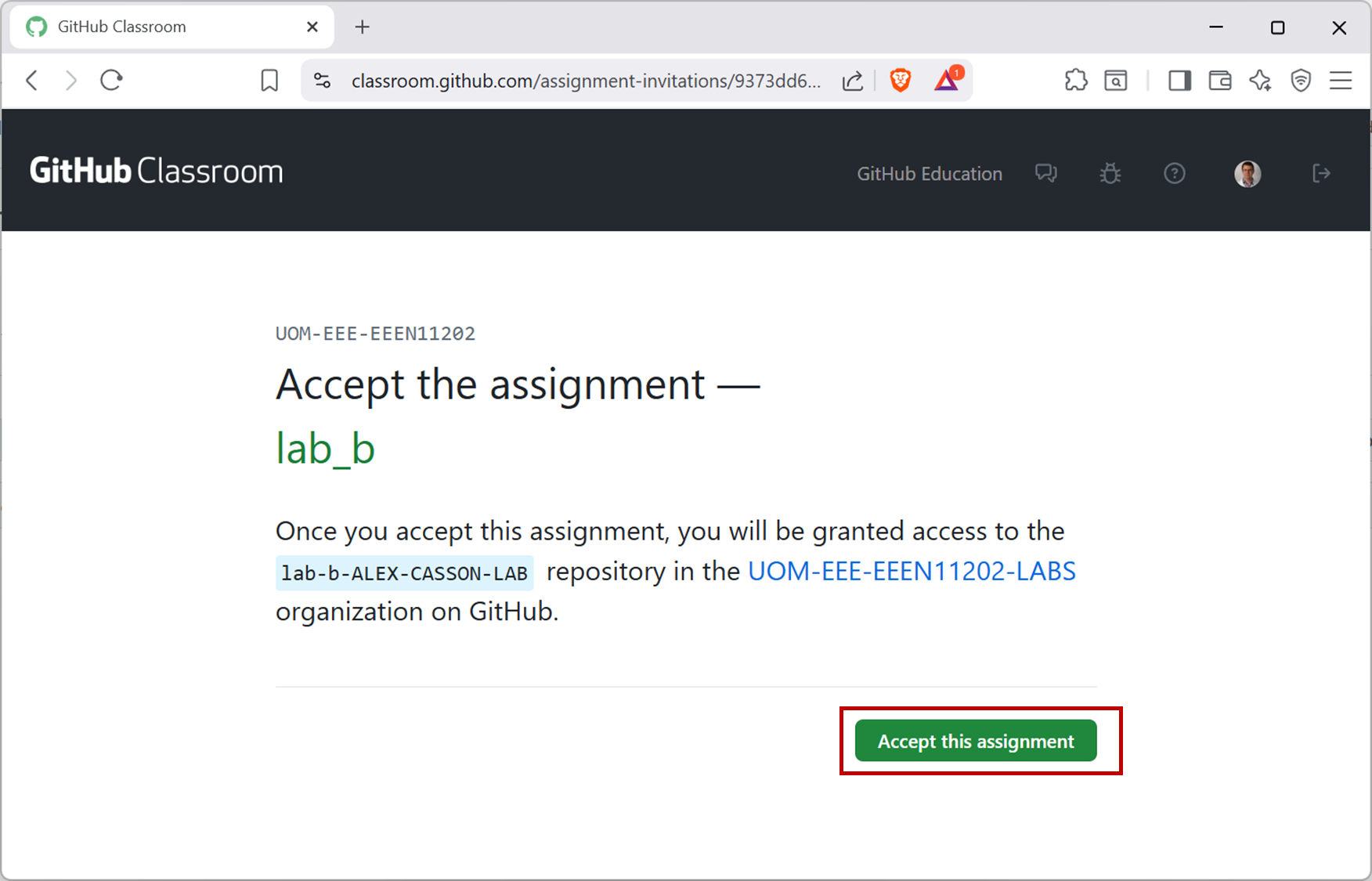
Screenshot of GitHub, software from Microsoft. See course copyright statement.
Once you’ve accepted the assignment, you’ll be taken to a
You're ready to go!page, as shown below.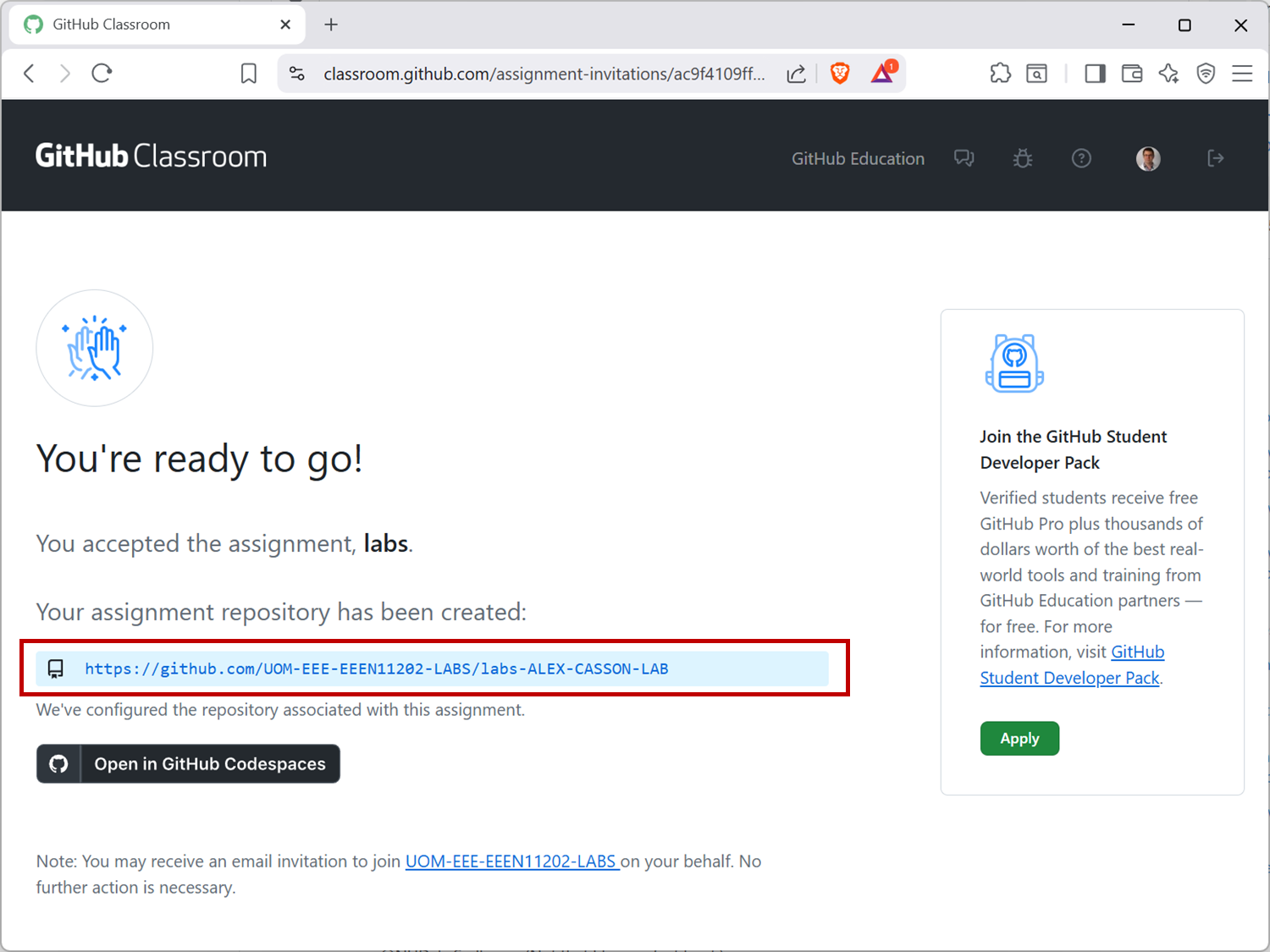
Screenshot of GitHub, software from Microsoft. See course copyright statement.
This includes a web address. Make a note of this, as you’ll need it to return to your files later.
The link will be something like https://github.com/UOM-EEE-EEEN11202-LABS/labs-ALEX-CASSON-LAB. Your address will be individual to you, depending on what your GitHub username is.
3.1.2.2.2. Starting the programming environment the first time
Click on
Open with Codespaces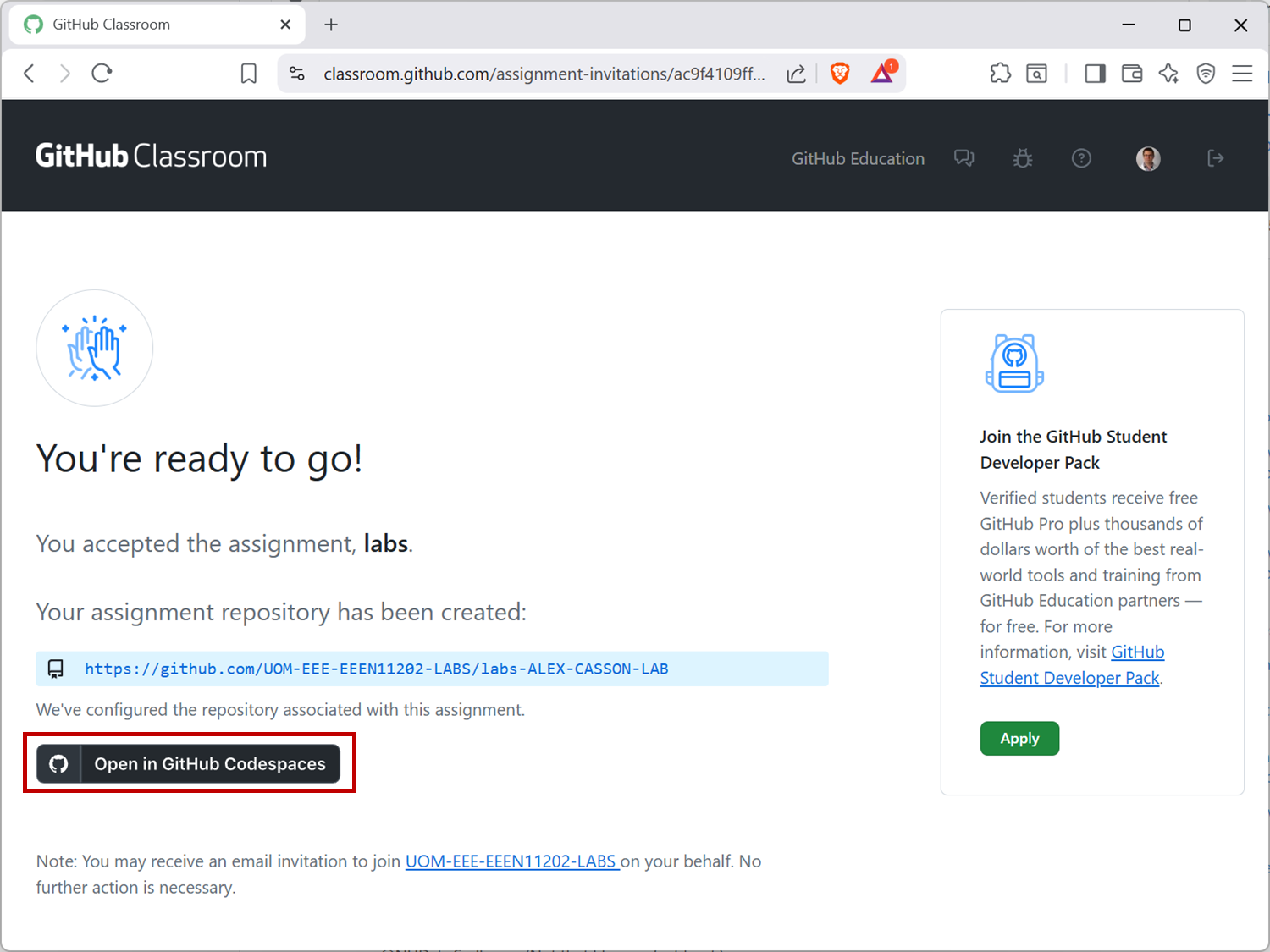
Screenshot of GitHub, software from Microsoft. See course copyright statement.
Click on
Open Workspace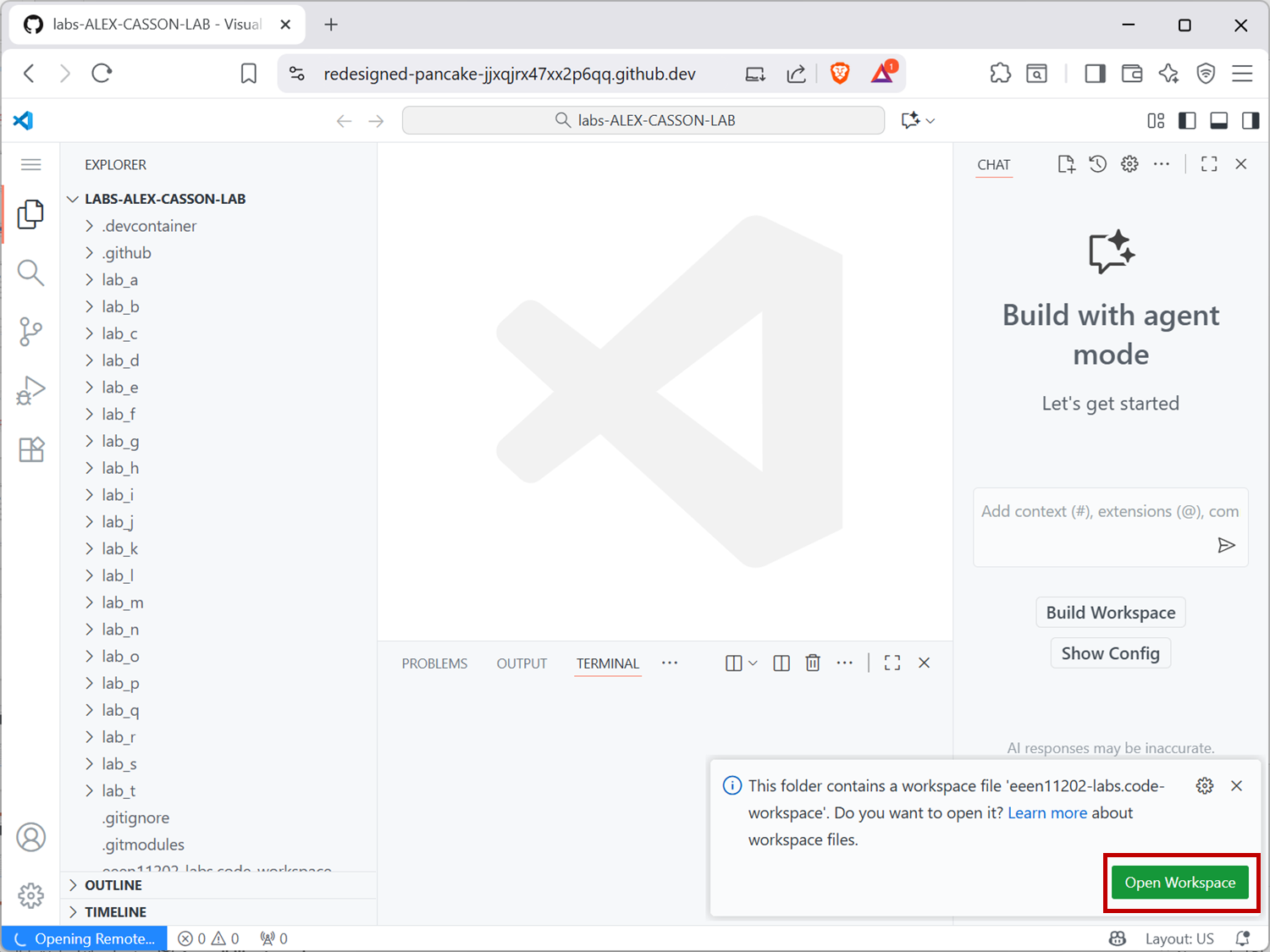
Screenshot of GitHub Codespace, software from Microsoft. See course copyright statement.
Wait while the setup completes. It can take a minute. When done your codespace will look like the below. Note that in the bottom left hand corner it says Codespace. In the explorer, each lab is listed using upper case letters (e.g. Lab A rather than lab-a) and it says workspace at the top. If you don’t have these, you’ve missed a step.
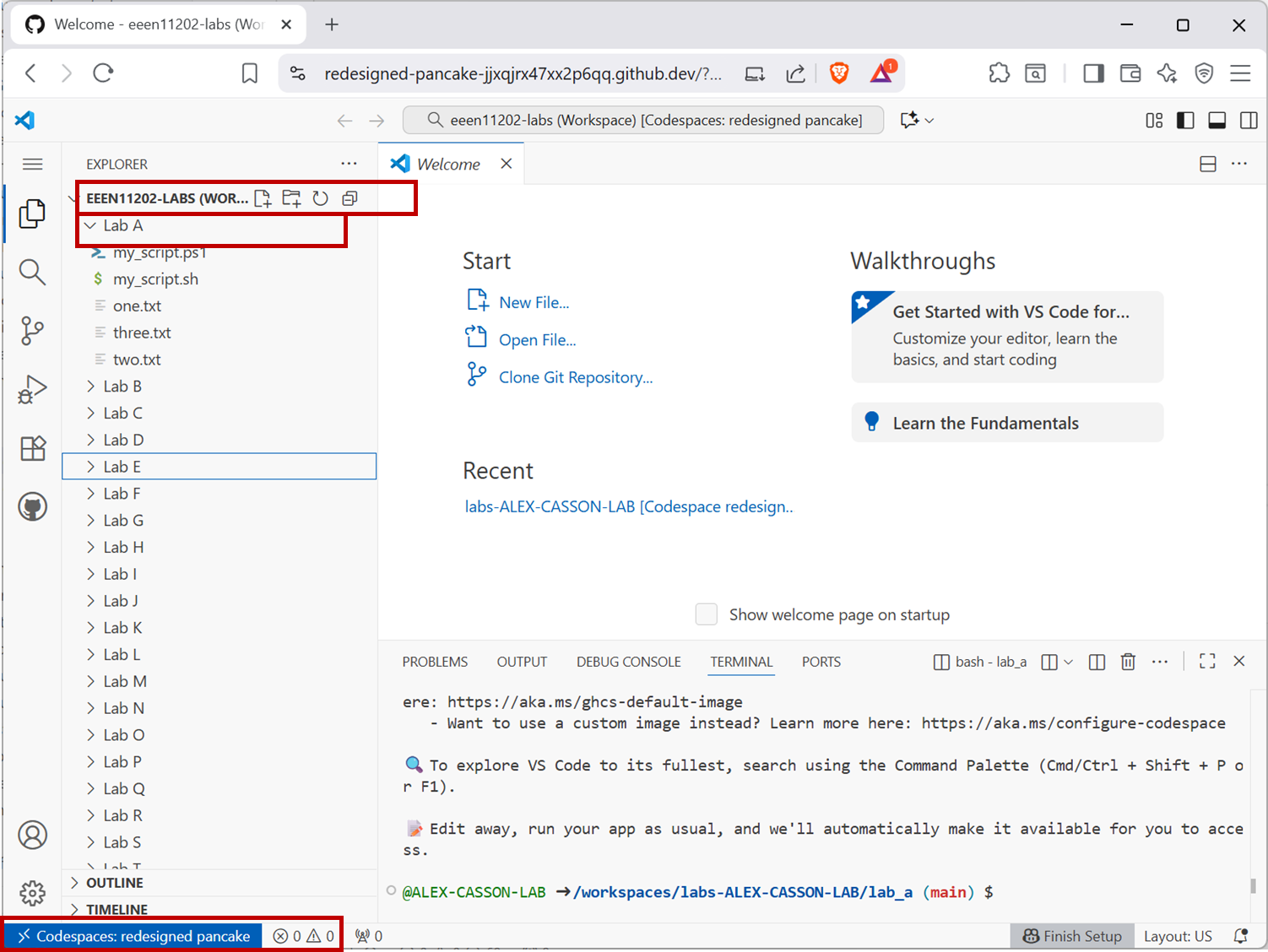
Screenshot of GitHub Codespace, software from Microsoft. See course copyright statement.
3.1.2.2.3. Stopping a Codespace
Danger
A Codespace is a virtual computer that runs on the Internet. GitHub give you 120 hours of use, and 15 GB of storage, per month for free of using this online computer. This is enough for this course. The course is expected to take approximately 200 hours in total, and is spread over several months.
Make sure you close your Codespace when you’re not using it! Otherwise you may run out of free time.
Make sure you don’t install lots of additional packages and options beyond what is required for the course. Otherwise you may run out of free disc space. Note that in Lab I it is important you clean up your files at the end of the lab, otherwise they use up a lot of space. Instructions for this are given at the end of Lab I.
Optionally you can verify your student status with GitHub they will increase your limits to 180 free hours per month and 20 GB of storage. There is no need to verify with GitHub, but if you would like to follow the instructions online.
If you run out of time with GitHub Codespaces, speak to a demonstrator before taking any other actions.
To pause or stop a Codespace when you reach the end of a coding session:
Click on
Codespacein the bottom left hand corner of the VSCode window.Click on
Stop Current Codespace.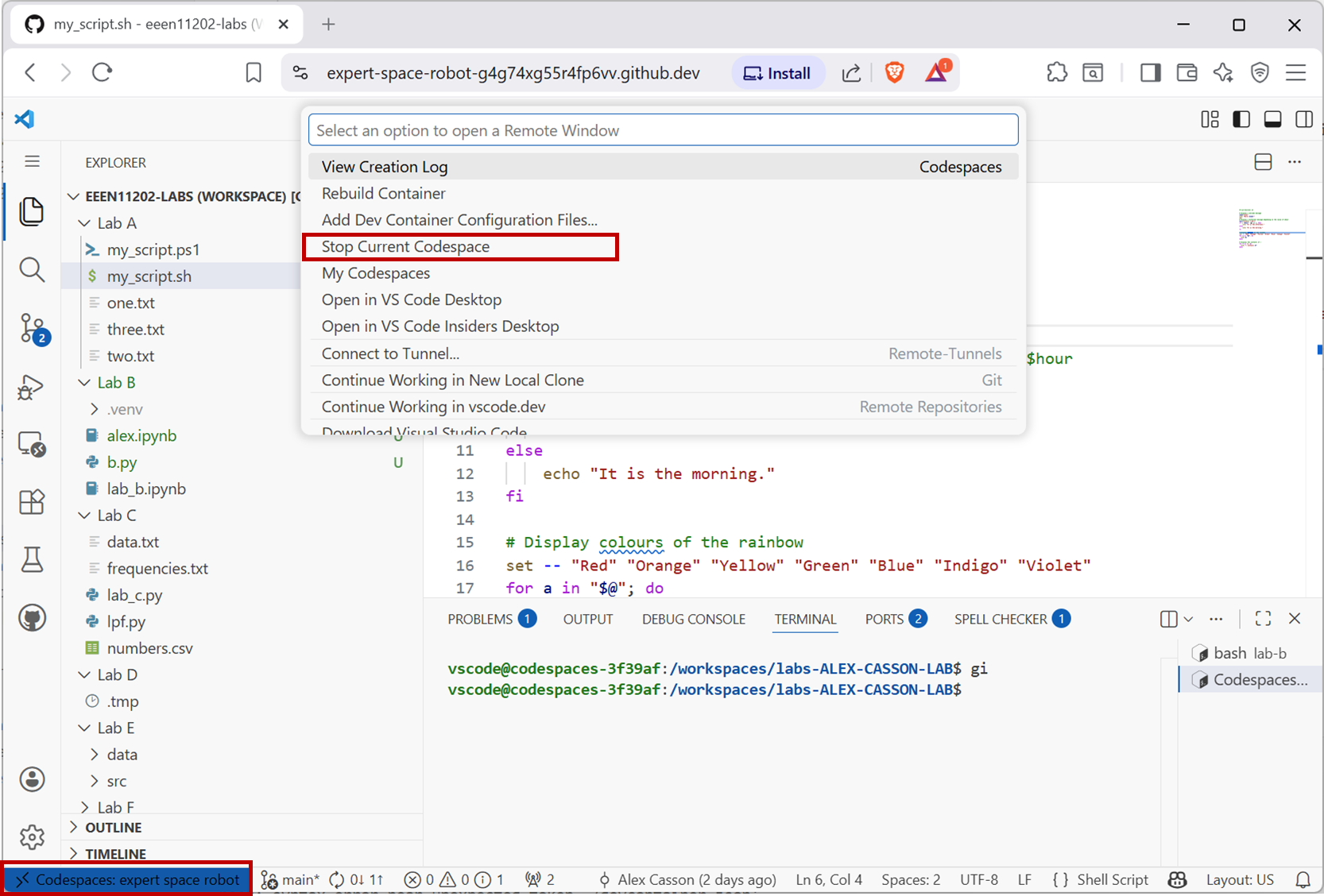
Screenshot of GitHub Codespace, software from Microsoft. See course copyright statement.
Danger
If you just close your web browser or tab, the Codespace will keep running in the background, and will continue to use up your free hours. Make sure you explicitly stop it as above.
The Codespace will automatically stop after a period of inactivity, with the default set at 4 hours. We suggest that you follow these GitHub instructions to reduce the timeout to a smaller value.
3.1.2.2.4. Starting the programming environment subsequent times
Earlier you made note of a web address. This was something like, https://github.com/UOM-EEE-EEEN11202-LABS/labs-ALEX-CASSON-LAB with the ending different depending on your GitHub username.
Return to this address in the browser.
You’ll see your files stored on the cloud.
Click on
Codeand thenCodespacesthen the name of your Codespace. In the figure below it isRedesigned pancake. Yours will have a different randomly assigned name.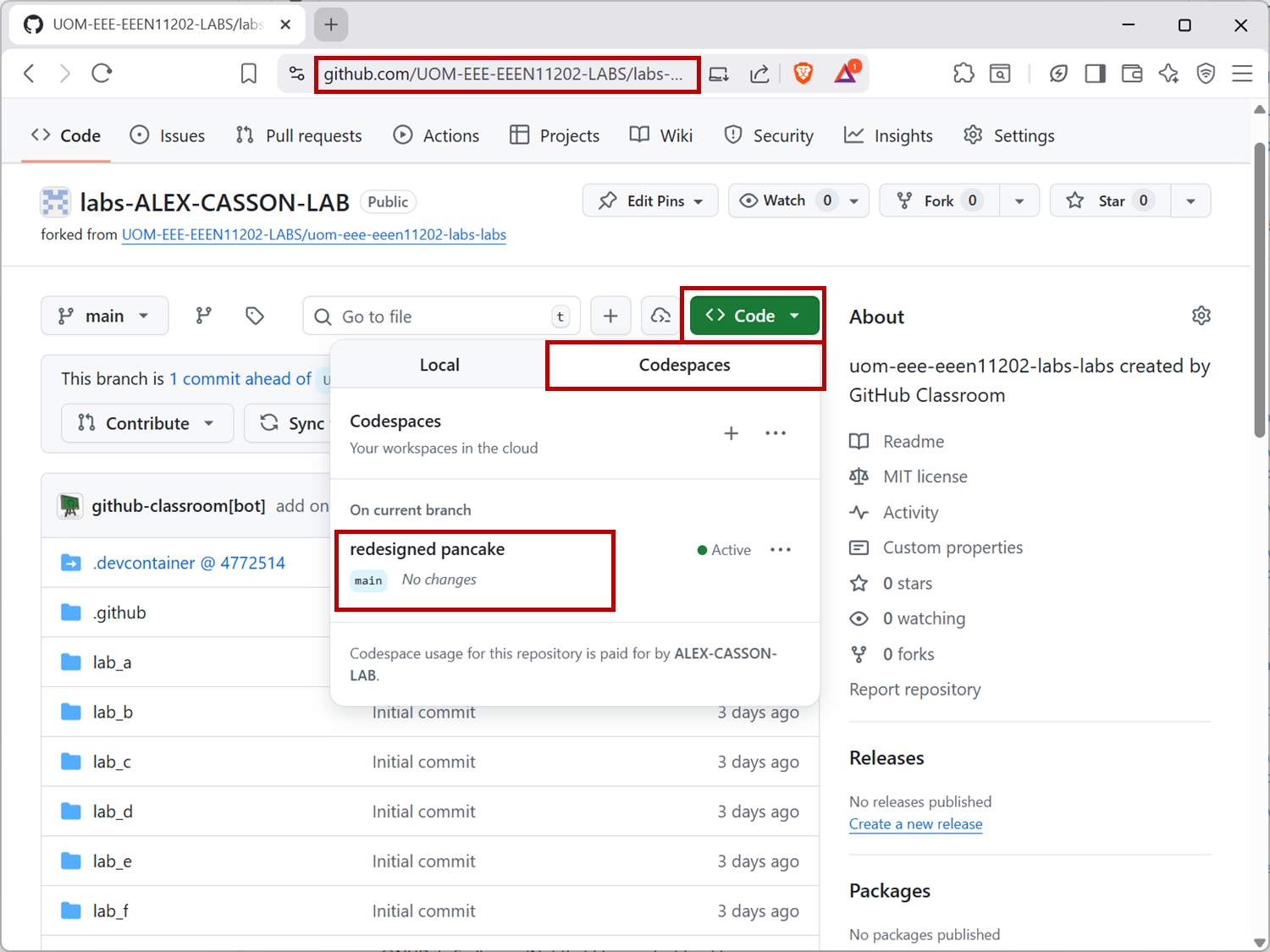
Screenshot of GitHub Codespace, software from Microsoft. See course copyright statement.