 EEEN11202 course notes
3.3. Files, folders, and filesystems
Code files can be very long! The labs for this course are intended to take 2-3 hours each, and so we’re constrained to looking at relatively small programs. Typically a hundred lines of code or so. Real programming projects have much more than this. For example, the Chrome web browser is estimated to have 6-7 million lines of code. When having so much code, its important to keep it organized. To do this, we split the code into files and store files in folders.
Aside
The concepts of files and folders come from the desktop metaphor. When computers first became widely used in the 1980’s, lots of terms were selected to make them familiar to people who had only ever previously worked on a physical desk, with pens, paper, books and similar. Back then, there were lots of physical pieces of paper (files), and means for grouping these together such as ring binders and filing cabinets (folders). This is why your computer has a desktop with files on it, it mirrors a physical desk. Of course, this doesn’t make a huge amount of sense today. Many people just have a computer on their physical desk!
3.3.1. Files
The basic unit of storing a document on a computer is a file. Each file has a name, known as the filename. This is usually something like
my_file_name.txt
Here my_file_name is the basename, what you want to call the file. Hopefully this is something meaningful to you as the user. The .txt is the extension. This tells the computer what type of file is present. This is also known as the format. A file can be perfectly valid even if no extension is present, but an extension helps tell the computer, and you, what kind of information is in the file.
For example, .docx indicates this file is for a Word document. .png indicates it contains a picture. There are lots of different file types, and not every program can open every type of file. Note that sometimes the extension is hidden by default. It may be present, but the interface just doesn’t display it unless you change the settings. (This is the default behavior in the Windows GUI.)
When programming, we often use files with a .sh, .py, .rs, .c, .cpp, extension, to indicate which programming language is being used for the code in that file.
3.3.2. Folders
For any practical project, you probably need several different files to store all of the information that’s needed. For example, when writing a report you may have a .docx Word file that actually contains the report. You may have several .png or .jpg pictures that you took and need to be included in the report to show your work. You may also have a spreadsheet document in .xlsx or .csv format that stores the results from an experiment.
The basic organizational unit for storing files is a folder. Folders are also known as directories. Files are stored in folders. You can also put folders into folders to help organize things into different levels. For example, the figure below shows the files and folders used for these notes (which you can view if you click the GitHub () icon at the top of the page). There is a folder called notes-part1. In here are several folders (.github, .venv, docs). The notes are stores in files with .rst extensions within the chapters folder.
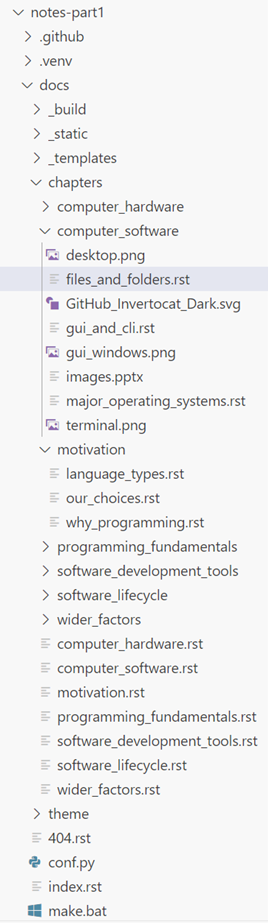
Screenshot of VSCode, software from Microsoft. See course copyright statement.
3.3.3. File systems
Each file and folder has an address on your computer to locate it. The address to a file is also known as the file path. The way in which addresses work varies depending on which operating system you’re using.
3.3.3.1. Windows
Addresses begin with a letter, followed by a colon :. Folders are separated by backslashes \. For example this might be:
C:\Users\alex\hello_world.py
We can also see this location (C:\Users\alex\) if we use the File Explorer GUI. It contains a file called hello_world.py.
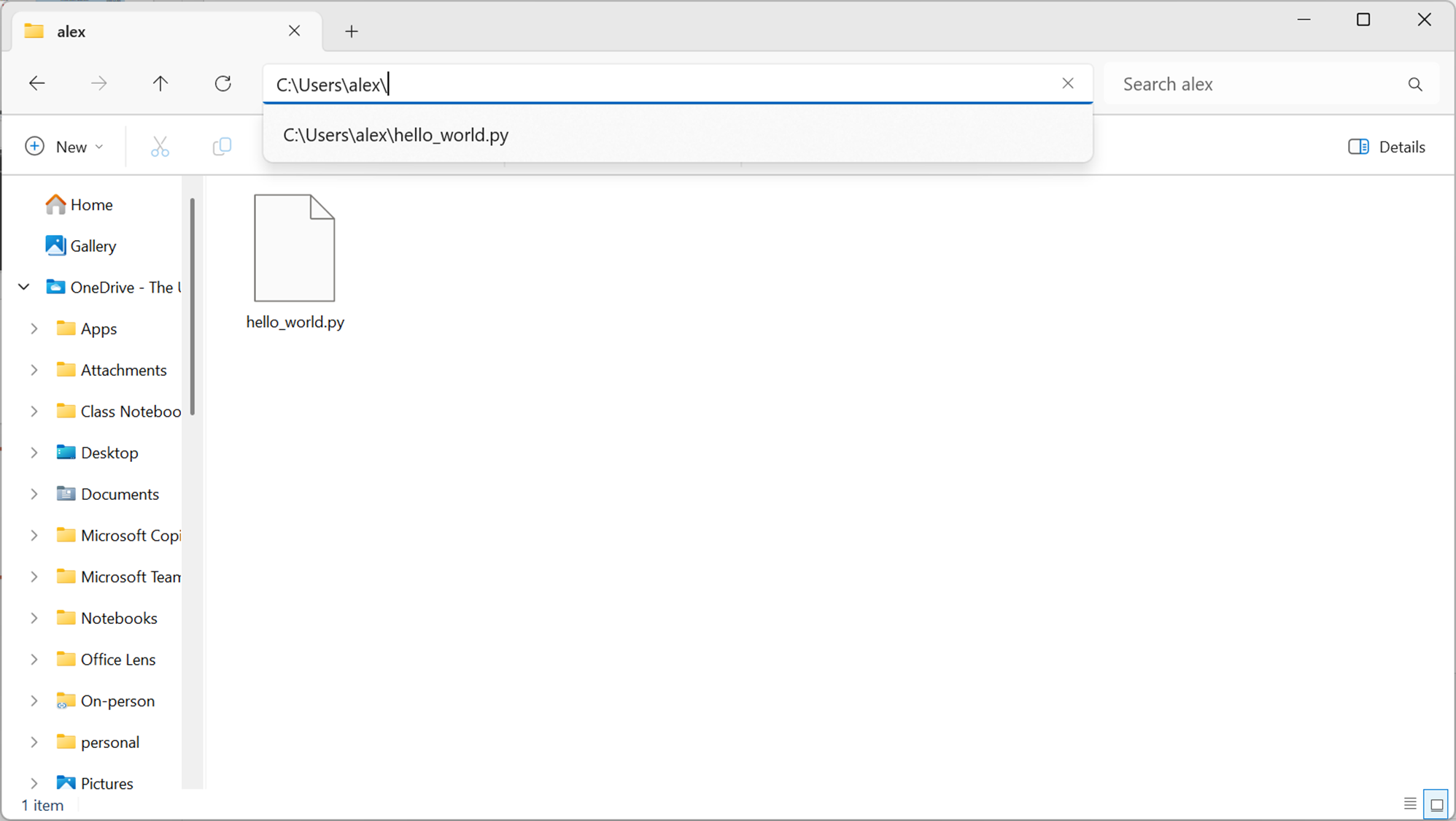
Screenshot of an example Windows file explorer, software from Microsoft. See course copyright statement.
By convention, the letter C:\ refers to the hard drive in the computer being used. You may see other letters being used. For example, students logged in to computers at the University of Manchester also have a P:\ drive. This is a network drive. The P:\ drive storage isn’t on the computer being used, it’s connected via the Internet and so given a different address letter.
This arrangement is very common for shared computers, although different places may use different letters. For shared devices, you want files to be accessible no matter which computer you log in to. You can’t do this if the files are only stored on the one physical computer. If you plug in a USB thumb drive, it will be given another letter, which may vary from computer to computer.
Using a drive letter is a form of physical addressing. It forces you to think about where you are storing the files. Is it on this computer, a thumb drive, or on a network computer, and so on.
In many programming languages the backslash character \ has a special meaning and can’t be used directly. It’s thus common to enter a Windows path using two backslashes, i.e. as
C:\\Users\\alex\\hello_world.py
or with forward slashes / as
C:/Users/alex/hello_world.py
These aren’t how Windows represents a path, it uses a single backslash, but may be the syntax needed in a programming file to represent the same thing.
3.3.3.2. macOS and Linux
Addresses begin with a forward slash /. Folders are separated by forward slashes /. For example this might be:
/Users/alex/hello_world.py
or
/home/alex/hello_world.py
macOS usually puts users’ files in /Users/username, while Linux puts them in /home/username.
Just / is a valid address. It is known as the root of the filesystem.
This is a form of logical addressing. You put the data in the most sensible location, without necessarily thinking about where the data is physically put. In principle
/home/alex/
and
/home/casson/
could be pointing to two different hard drives. The actual storage location has been abstracted away.
3.3.3.3. Cloud storage
At the University of Manchester our cloud storage provider is Microsoft OneDrive. Cloud storage changes the statements above a little.
On Windows, you will have a folder called
C:\Users\alex\OneDrive - The University of Manchester
or similar. (There will be similar locations on macOS and Linux, but we’ll only give the Windows example for brevity here.) Files in the OneDrive folder are on the C:\ drive. That is, they are on the hard drive of the computer being used.
At the same time, OneDrive will automatically copy the files to the Cloud. This means that they are backed up automatically, and so if anything happens to your computer you’ll still have all of your work. It also means that the files will be automatically available on any computer which has access to your OneDrive account.
(There’s also the option of having the file online by default. That is, Windows sees the file in the C:\ drive as usual, but to save disk space it isn’t actually kept on the computer. It’s kept on the Cloud and downloaded when needed.)
You can access files in OneDrive using the same C:\ address as you would for any other file.
3.3.3.4. Absolute vs. relative addresses
The addresses given above, starting with C:\ or / are absolute addresses. They start from the root of the computer being used and everything is given a full address from that starting point.
You can also have relative addresses. That is, an address of a file or folder, as steps from a current location or file or folder.
Giving examples for macOS/Linux using forward slashes,
./
represents the current folder. Two dots
../
represents the folder one level up. That is, the folder containing the current location or file or folder. ../../ is two levels up, and so on.
Showing the same tree view of the files/folders for these notes that we saw earlier on this page
Screenshot of VSCode, software from Microsoft. See course copyright statement.
from files_and_folders.rst, gui_and_cli.rst is in the same folder and so can be accessed with the relative address
./gui_and_cli.rst
our_choices.rst is up one level, and then in a different folder called motivation. From files_and_folders.rst, our_choices.rst can be accessed with the relative address
../motivation/our_choices.rst
3.3.4. Best practices
3.3.4.1. Where should I put my files?
The short answer is in your University provided OneDrive. This will ensure that the files will be automatically backed up, and automatically available on any computer which has access to your OneDrive account.
You may find that some, mainly older, programs don’t like files which are stored in OneDrive. Your second choice location should be your P:\ drive. This is a network drive, and the storage is maintained for you by IT. That means it’s automatically backed up, and available on any University computer.
The C:\ drive should be the location of last resort. Files here are only on the computer you’re using at the time. If you switch to a different computer, or you lose/damage the computer, your files will be lost (unless you’ve taken some other steps to back them up).
3.3.4.2. How much filing to do
When programming, you’ll quickly find that you actually have quite a few files, even for simple programs. Indeed, it’s common for the programming tools to automatically make a number of files and folders to store additional information about your program, even if your program is fundamentally only in one file.
If you don’t keep any track at all of what you put where, it’s easy to lose files - as in, they’re there, you just don’t know where. Or, to have multiple copies of the same underlying file.
You can of course search to find files, but when you have lots of files with similar names and/or content this can be quite hard. It is worth spending some time to organize your files. Wherever you put it, we would recommend making an EEEN11202 folder, and then having a folder for each lab within that outer folder.