 EEEN11202 course notes
3.2. User interfaces: graphical and the command line
3.2.1. Graphical User Interfaces
Most computer systems we interact with as users have a Graphical User Interface (GUI). These are the buttons and icons and other areas that we can interact with via the keyboard, mouse, and other input methods. An example of the basic Windows GUI, which you’re probably familiar with, is shown below.
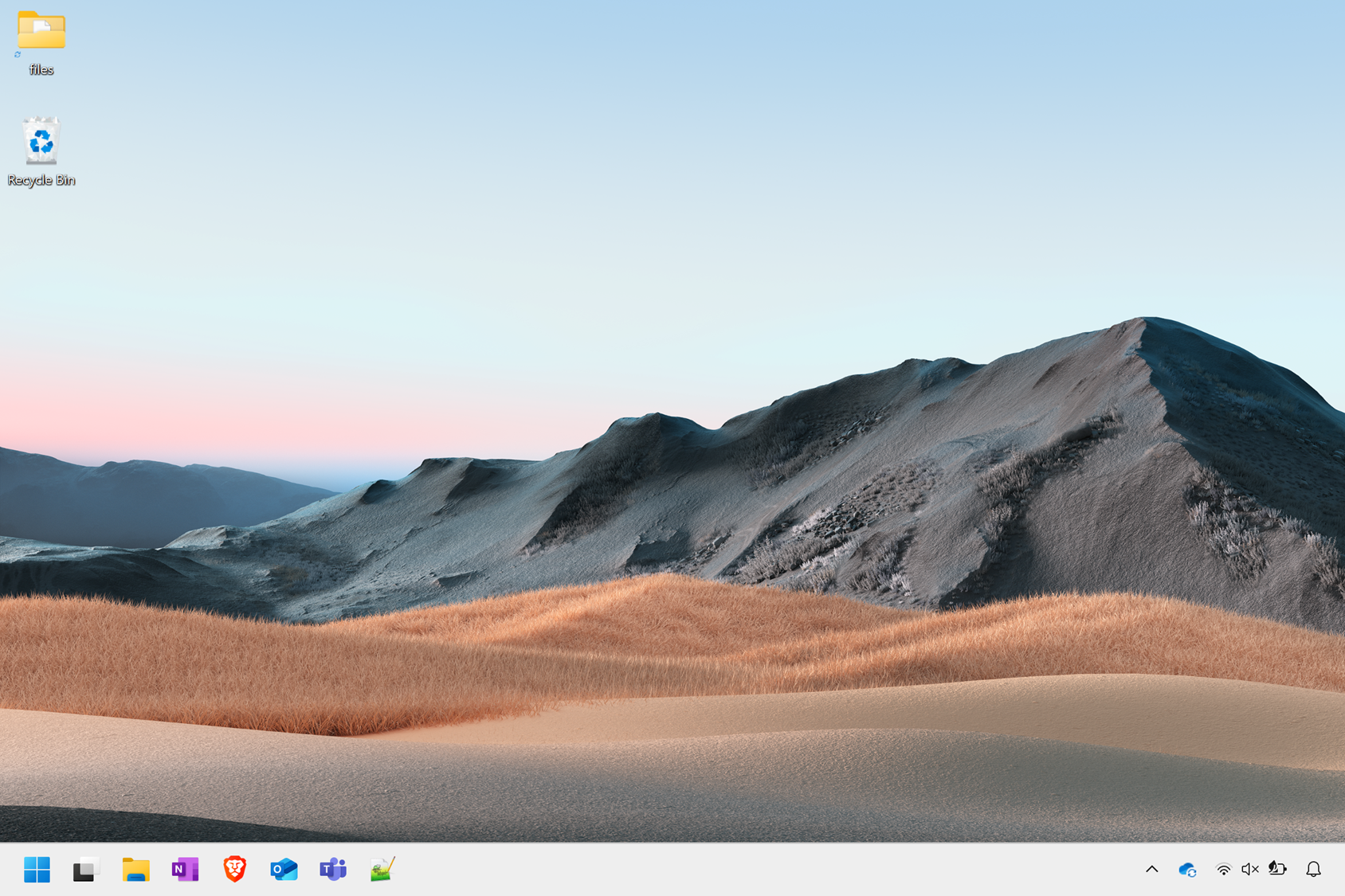
Screenshot of an example Windows desktop, software from Microsoft. See course copyright statement.
Different Apps and Programs are displayed in windows, which you can arrange to view multiple different things at the same time. Within each window, the App has buttons to control what it does, possibly areas to enter text, and so on. You interface with these via the keyboard, mouse, and possibly touch (if you have a touchscreen computer).
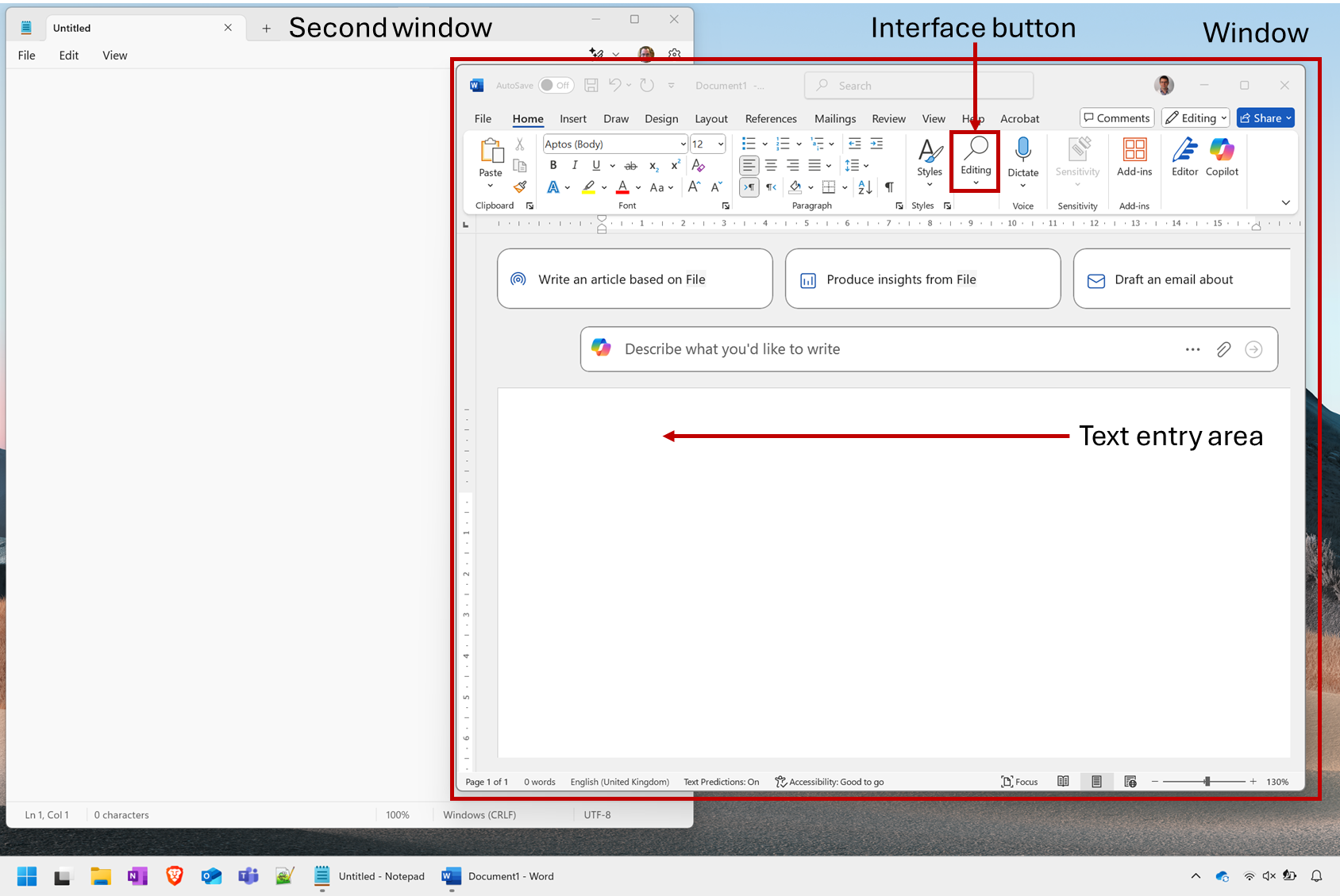
Screenshot of an example Windows desktop and software including Microsoft Word, software from Microsoft. See course copyright statement.
3.2.2. Command Line Interfaces
Before computers had GUIs, they had only a Command Line Interface (CLI) where commands had to be typed in. Computers still have the CLI, and the CLI is widely used for programming because it gives a lot of control. The instructions to the computer are written down, they don’t (say) rely on you clicking on the correct area of the screen.
Aside
You may also see people refer to a Text User Interface (TLI). For our purposes, these are a sub-set of Command Line Interfaces, and so we’ll only refer to Command Line Interfaces.
In macOS or Linux you will find a pre-installed application called Terminal. In Windows there is Command Prompt (which is older) and Powershell (which is more recent and some copies of Windows may only have this). You can also install Windows Terminal from the Windows Store which lets you easily switch between different CLIs. Sometimes these modern CLIs are referred to as Terminal Emulators, as they’re not the core of the operating system any more they’re emulating what computers used to look like.
You can start these CLIs from the Start menu (or similar) as you would any other program. An example of Windows Terminal, giving access to the Command Prompt, PowerShell and a Linux terminal, is shown below.
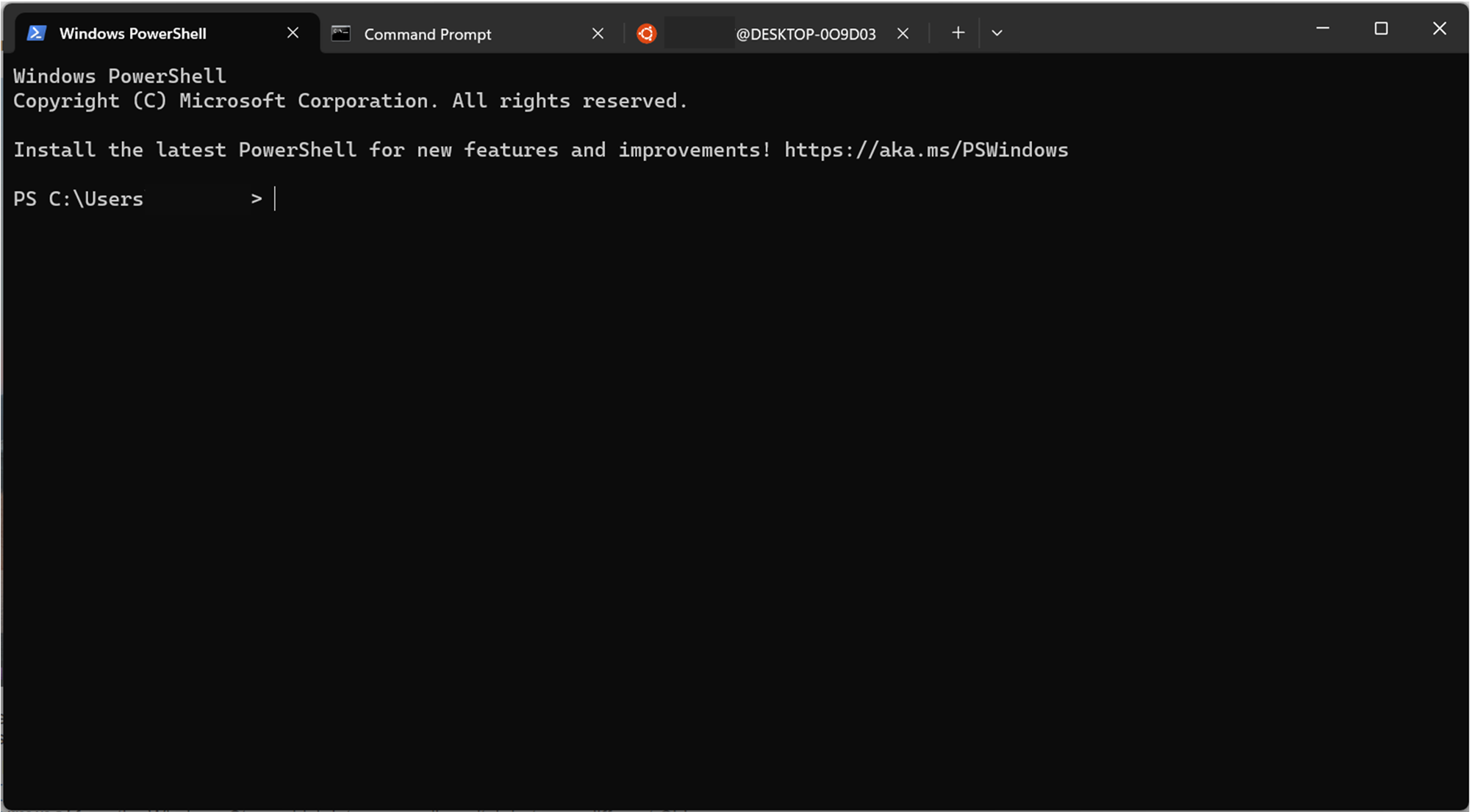
Screenshot of the Windows terminal, software from Microsoft. See course copyright statement.
We’re explore using these interfaces in the first lab. Briefly, lots of programs accept inputs at the command line, even if you don’t use it lots. For example, if running Windows, and you have the Chrome web browser installed (at the location used below) you can enter the command
> "C:\Program Files\Google\Chrome\Application\chrome.exe" --headless --disable-gpu --print-to-pdf-no-header --print-to-pdf="output.pdf" "input.html"
to convert a HTML webpage to a PDF file. The > above represents the command prompt, showing where to enter the command. You don’t have to type it in. You can see it in the screenshot above, showing you where to enter commands.
In general, terminal windows have three ports associated with them:
Standard input. Usually commands coming from the keyboard.
Standard output. Usually displaying text to the terminal window.
Standard error. Where errors are displayed. This is generally the terminal window, but it might be mapped to a special error display, or to a log file.
As this course doesn’t look into GUI applications, we’ll use the terminal a lot for providing input and displaying output to our programs, and (when they inevitably occur!) errors will be displayed here too.