 EEEN11202 course notes
5.8. Version control
It’s very common to have more than one version of a piece of software or set of files. Generally, more features are added over time, or bugs are fixed. Often when writing a program, you may make one part of the code work and then move on to the next part. When working on this next part, you don’t want to break the things that already work! This is known as regression. It means you have to spend time correcting things that once worked, and you’ve (presumably) accidentally broken.
To avoid this, whenever we have a working piece of code, we usually commit it to a version control system. The version control system keeps track of the different versions of each file and it’s easy to roll-back to a previous version if you have to, or to get a display of what has changed between different versions. Generally, we use the version control system to keep track of different versions of the same file, we don’t make a copy ourselves and call it (say) my_work-backup.py.
Version control is also widely used when working in teams. Multiple people can be working on the code in one repository at the same time, and use the version control system to keep the code in sync with one another and to pass code between one another.
There are a wide number of version control tools that can be used. Historically, CVS, and then subversion, were very popular. Today, git is widely used. Git is a separate tool to install, but the VSCode GUI then provides an interface to it. Alternatively, you can use git at the command line.
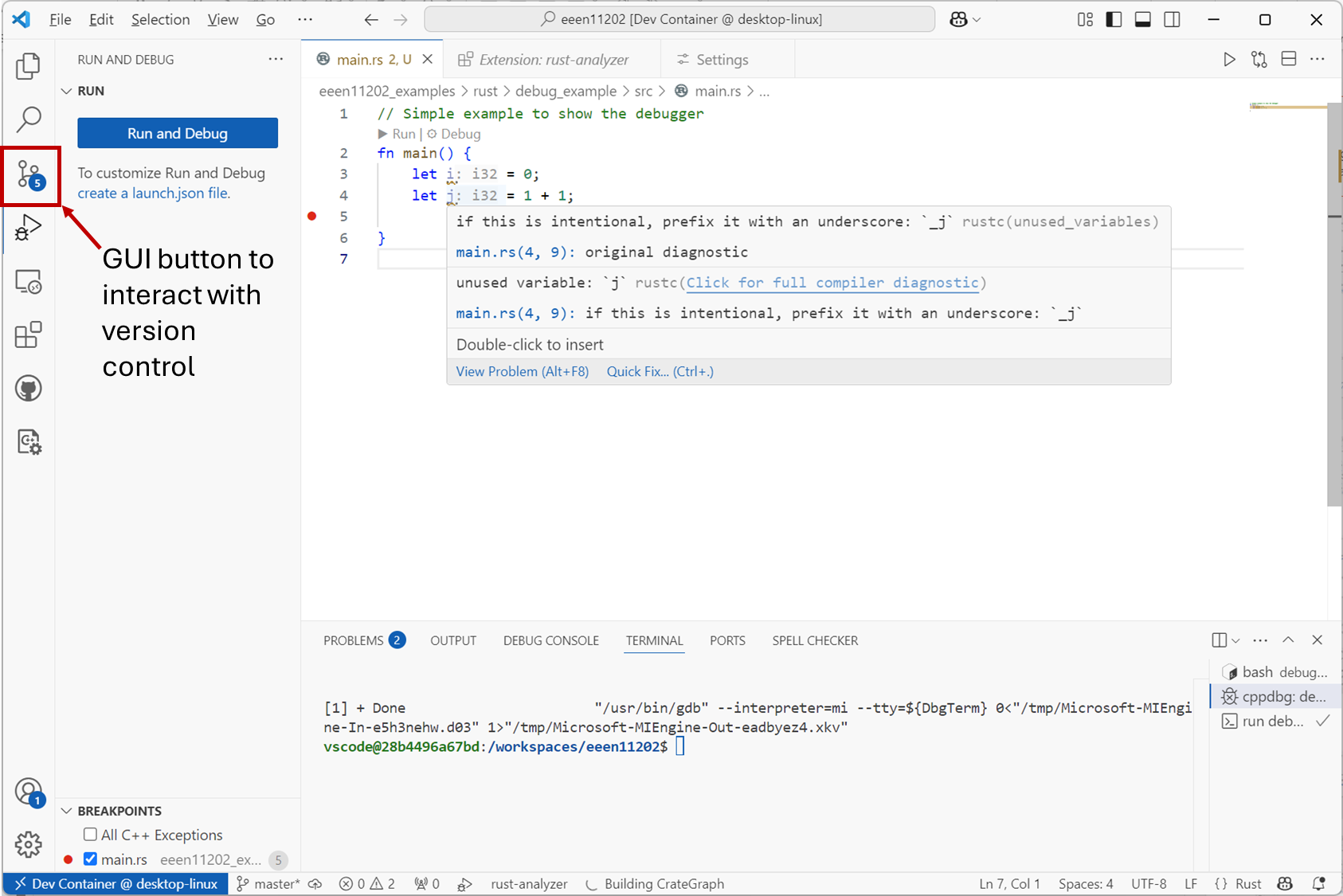
Screenshot of VSCode, software from Microsoft. See course copyright statement.
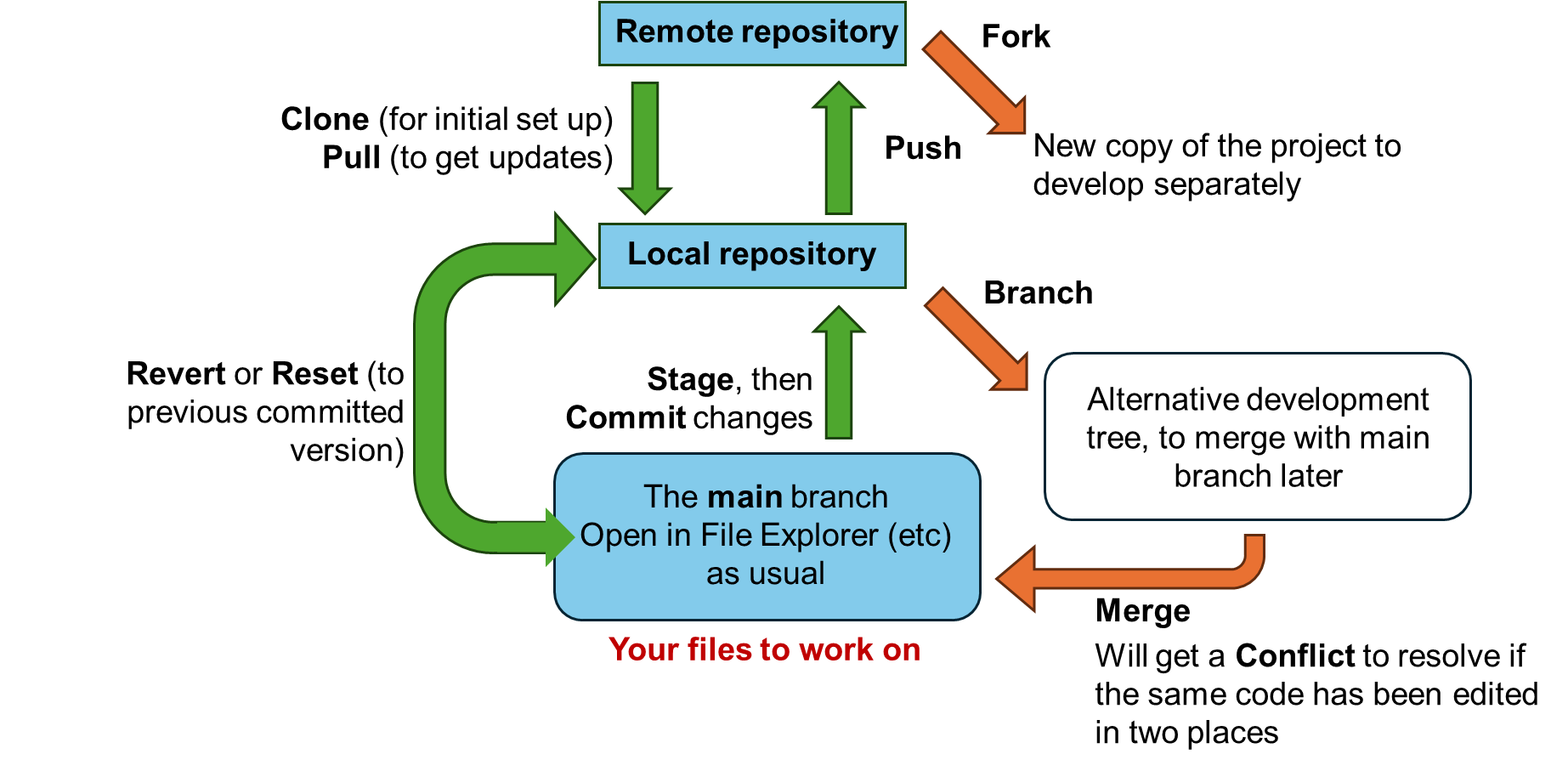
We’ll see git in the labs. To briefly introduce it, the usage model is shown below. The core flow is shown in green. More optional, and more advanced, functions are shown in orange. The terminology used is:
Remote repository. This is the shared space where multiple people can place and view the code. The code might be available publicly, or only available to people who are given permission. We typically use GitHub, although GitLab is also popular, and indeed the remote repository can be essentially anywhere. You can view my work repositories here, and the files for this course at the main repository.
Clone. Cloning is the process of making a local copy, on your computer, of a remote repository. You can clone a blank repository, or one which already has a number of files in it. Often the first step when using git is to either clone an existing repository, or to make a blank repository on GitHub (say) and then to clone this.
Local repository. This is your copy of the code files, stored on your computer. These are the files that you edit and do your development with.
Commit. When you have files that are working, or some version that you want to log, you commit these to the local repository. This marks the versions that you want to keep a copy of. Sometimes this is also known as checking-in the code.
Staging. Before committing files, you have to tell git which files you want to commit. This is known as staging the changes. For simple projects, you probably just want to stage and commit all of the files. For more complex projects, there may be files which are specific to one computer and so don’t want to be sent to a remote repository. There may be secrets such as security keys which shouldn’t be shared. Staging and the
.gitignorefile allow control of what gets logged.Push. When you want to, you push your files to the remote repository (assuming you have permissions to do this). This will update the code that others can see. Until you do a push, only your local files will have been updated with any changes. You can do a push after every commit, or just every-so-often, whatever is best for you. You might get a conflict, say if two people have been working on the exact same piece of code at the same time. You’ll be asked to resolve this before the push can complete.
Pull. A pull will update your repository with the latest version from a different repository. This will let you get updates from others.
Fork. A fork is making a copy of existing code, so that you can work on it separately. This is typically done when you’re starting a new project, but want to start from an existing one. So, you’re not modifying the existing project, you’re modifying your copy, or fork, of it.
Branch. Sometimes you want or need more than one copy of some files in your repository. Maybe you’re actively working on Version 2, but it’s not ready yet and so Version 1 needs to be present too. You can make a branch for developing Version 2 in. This keeps it separate from the other code, with the ability to merge it in later.
Reset or Revert. You can switch between different committed versions of the code, if you want to roll-back to a previous version, or if you want to compare the changes that have been made.
This workflow is summarized in the figure below.
Overall, having both local and remote repositories is very powerful for team working. It allows you to work on your copy of the code, keeping it in version control so you can track any changes and/or roll-back if you need to. When ready, you can then synchronize the local and the remote repository. This updates your code with any updates from others, but only when you’re ready and do a pull. Equally, your local changes are only sent out to others when you’re ready and do a push.
There are git commands with all of the different terms introduced above. You can run git at the command line to get full control of the options present. For example, to clone a remote repository and get a copy on your computer (assuming this is where you want to put it):
> cd P:\Desktop\my_copy
> git clone https://github.com/ALEX-CASSON-LAB/uom_msc_dissertation_word_template
To commit changes you’ve made to the files:
> git commit -m "Brief description of what's changed"
Use:
> git --help
to see a full list of the available commands.
This course
Knowledge of version control is a learning outcome from the course. We’ll use git extensively in the labs and expect you to be familiar with it.